Locator Strategies for E-Commerce
The Locator Hierarchy
Not all locators are created equal. Here's the order of preference:
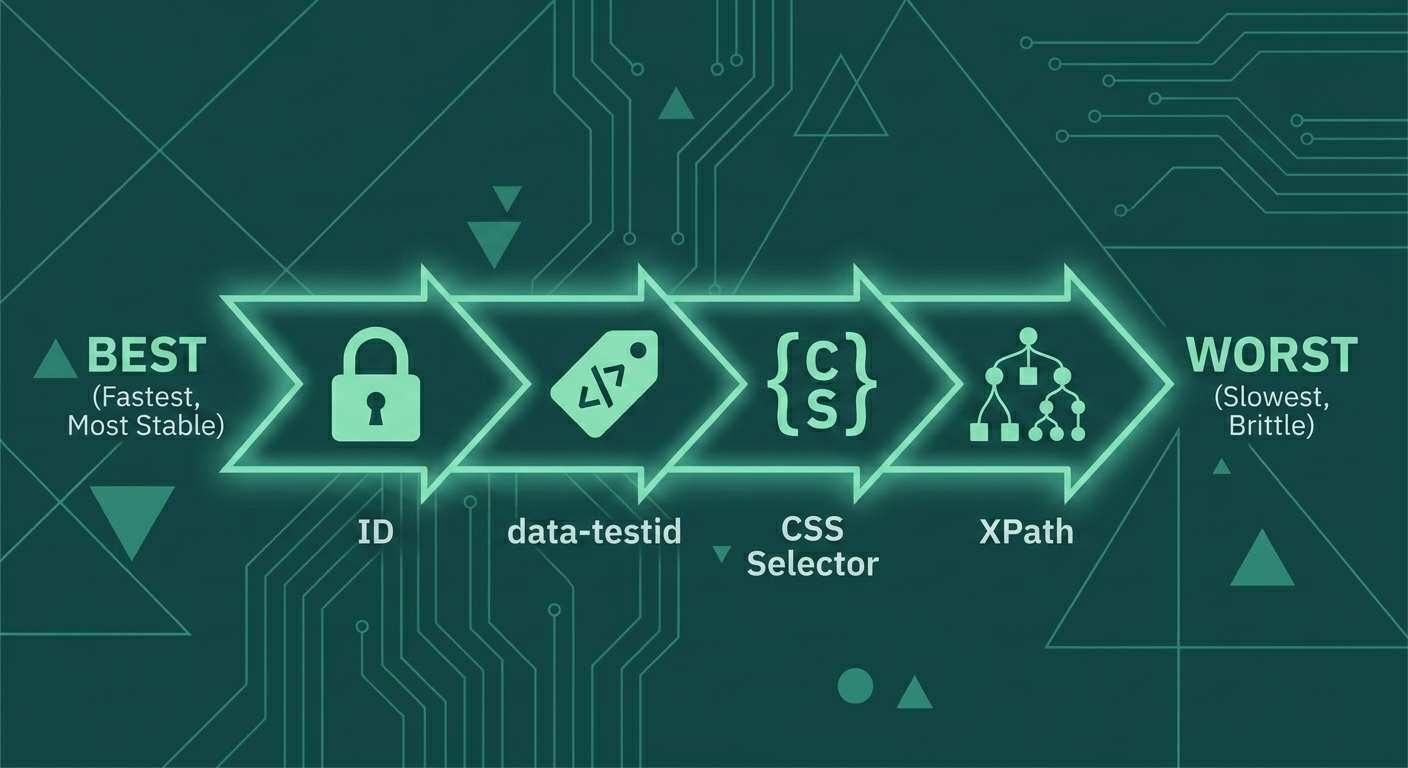 Best → Worst: ID → data-testid → CSS Selector → XPath
- Left (Best): Fast, stable—IDs and data-testid attributes rarely change
- Right (Worst): Slow, brittle—XPath is verbose and breaks easily
Why This Order?
| Locator | Speed | Stability | Readability |
|---|---|---|---|
| ID | Fastest | High (if unique) | Good |
| data-testid | Fast | Highest | Excellent |
| CSS Selector | Fast | Medium | Good |
| XPath | Slowest | Low | Poor |
Locator Types in Selenium
from selenium.webdriver.common.by import By

# All available locator strategies
driver.find_element(By.ID, "login-button")
driver.find_element(By.NAME, "username")
driver.find_element(By.CLASS_NAME, "product-card")
driver.find_element(By.TAG_NAME, "button")
driver.find_element(By.LINK_TEXT, "Add to Cart")
driver.find_element(By.PARTIAL_LINK_TEXT, "Add")
driver.find_element(By.CSS_SELECTOR, ".cart-item[data-id='123']")
driver.find_element(By.XPATH, "//button[@type='submit']")
E-Commerce Locator Examples
Product Cards
<!-- HTML Structure -->
<div class="product-card" data-testid="product-card" data-product-id="123">
  <img src="product.jpg" alt="Blue T-Shirt">
  <h3 class="product-name">Blue T-Shirt</h3>
  <span class="price">$29.99</span>
  <button class="add-to-cart" data-testid="add-to-cart-123">
    Add to Cart
  </button>
</div>
# Good: Using data-testid
product_card = driver.find_element(By.CSS_SELECTOR, "[data-testid='product-card']")
add_button = driver.find_element(By.CSS_SELECTOR, "[data-testid='add-to-cart-123']")
# Acceptable: CSS with attribute
add_button = driver.find_element(By.CSS_SELECTOR, "button.add-to-cart")
# Avoid: Fragile XPath
add_button = driver.find_element(By.XPATH, "//div[3]/div[2]/button")Cart Items
# Find all cart items
cart_items = driver.find_elements(By.CSS_SELECTOR, "[data-testid='cart-item']")

# Find specific item by product ID
item = driver.find_element(By.CSS_SELECTOR, "[data-testid='cart-item'][data-product-id='123']")

# Find quantity input within a cart item
quantity = item.find_element(By.CSS_SELECTOR, "input[type='number']")

# Find remove button within a cart item
remove_btn = item.find_element(By.CSS_SELECTOR, "[data-testid='remove-item']")
Checkout Form
# Form fields - prefer ID or data-testid
email = driver.find_element(By.ID, "checkout-email")
address = driver.find_element(By.CSS_SELECTOR, "[data-testid='shipping-address']")

# Select dropdown
country = driver.find_element(By.ID, "country-select")
# Use Select class for dropdowns
from selenium.webdriver.support.ui import Select
country_select = Select(country)
country_select.select_by_visible_text("United States")

# Radio buttons
shipping_standard = driver.find_element(By.CSS_SELECTOR, "input[value='standard']")
shipping_express = driver.find_element(By.CSS_SELECTOR, "input[value='express']")
The Case for data-testid
data-testid attributes are specifically for testing. They survive:
- CSS refactoring
- Class name changes
- DOM restructuring
- Design updates
<!-- Before refactoring -->
<button class="btn btn-primary add-cart-btn" data-testid="add-to-cart">
  Add to Cart
</button>

<!-- After refactoring (test still works!) -->
<button class="button--primary product__cta" data-testid="add-to-cart">
  Add to Cart
</button>
Advocating for data-testid
If your team doesn't use data-testid, advocate for it:
"Adding data-testid attributes costs developers 30 seconds per element.
It saves QA hours of test maintenance when designs change."
Selenium 4 Relative Locators
Selenium 4 introduced relative locators—find elements based on their position relative to other elements.
from selenium.webdriver.support.relative_locator import locate_with

# Find the password field below the username field
username = driver.find_element(By.ID, "user-name")
password = driver.find_element(locate_with(By.TAG_NAME, "input").below(username))

# Find the label to the left of an input
email_input = driver.find_element(By.ID, "email")
email_label = driver.find_element(locate_with(By.TAG_NAME, "label").to_left_of(email_input))

# Find the submit button near the form
form = driver.find_element(By.ID, "checkout-form")
submit = driver.find_element(locate_with(By.TAG_NAME, "button").near(form))

# Combine relative locators
cancel_btn = driver.find_element(
    locate_with(By.TAG_NAME, "button")
    .to_left_of(submit)
    .below(form)
)
When to Use Relative Locators
| Use Case | Example |
|---|---|
| Dynamic tables | "Find the Edit button in the same row as 'Product X'" |
| Forms | "Find the error message below this input" |
| Cards | "Find the price near this product name" |
| Modals | "Find the Close button near the modal title" |
XPath: When You Have No Choice
Sometimes XPath is necessary. Here are patterns for e-commerce:
# Find by text content
add_to_cart = driver.find_element(By.XPATH, "//button[text()='Add to Cart']")

# Find by partial text
see_details = driver.find_element(By.XPATH, "//a[contains(text(),'Details')]")

# Find parent from child
product_card = driver.find_element(By.XPATH, "//button[@data-testid='add-to-cart']/ancestor::div[@class='product-card']")

# Find sibling
price = driver.find_element(By.XPATH, "//h3[text()='Blue T-Shirt']/following-sibling::span[@class='price']")

# Find by attribute contains
dynamic_element = driver.find_element(By.XPATH, "//div[contains(@id, 'product-')]")
XPath Anti-Patterns (Avoid These)
# Absolute XPath - Breaks with any DOM change
driver.find_element(By.XPATH, "/html/body/div[2]/div/div[3]/button")

# Index-based - Fragile
driver.find_element(By.XPATH, "//div[3]/button[2]")

# Overly specific - Breaks with styling changes
driver.find_element(By.XPATH, "//button[@class='btn btn-lg btn-primary mt-3 mb-2']")
Building a Locator Strategy for Your E-Commerce Site
Step 1: Audit Existing Locators
# Create a locator map for critical elements
class ProductPageLocators:
    PRODUCT_TITLE = (By.CSS_SELECTOR, "[data-testid='product-title']")
    PRODUCT_PRICE = (By.CSS_SELECTOR, "[data-testid='product-price']")
    ADD_TO_CART = (By.CSS_SELECTOR, "[data-testid='add-to-cart']")
    QUANTITY_INPUT = (By.ID, "quantity")
    SIZE_SELECT = (By.ID, "size-select")

class CartPageLocators:
    CART_ITEMS = (By.CSS_SELECTOR, "[data-testid='cart-item']")
    CART_TOTAL = (By.CSS_SELECTOR, "[data-testid='cart-total']")
    CHECKOUT_BTN = (By.CSS_SELECTOR, "[data-testid='checkout-button']")
    EMPTY_CART_MSG = (By.CSS_SELECTOR, "[data-testid='empty-cart']")
Step 2: Centralize Locators
Never hardcode locators in tests. Use Page Objects (covered in Lesson 6).
# Bad: Locators scattered in tests
def test_add_to_cart():
    driver.find_element(By.CSS_SELECTOR, ".add-to-cart").click()
    assert driver.find_element(By.CSS_SELECTOR, ".cart-count").text == "1"

# Good: Centralized locators
def test_add_to_cart(product_page, cart_icon):
    product_page.add_to_cart()
    assert cart_icon.get_count() == 1
Debugging Locators
Browser DevTools
// In Chrome DevTools Console:

// Test CSS Selector
document.querySelector("[data-testid='add-to-cart']")

// Test XPath
$x("//button[contains(text(),'Add')]")

// Count matching elements
document.querySelectorAll(".product-card").length
Selenium Debugging
# Check if element exists
elements = driver.find_elements(By.CSS_SELECTOR, "[data-testid='product']")
print(f"Found {len(elements)} elements")

# Get element attributes
element = driver.find_element(By.ID, "submit")
print(f"Tag: {element.tag_name}")
print(f"Text: {element.text}")
print(f"Displayed: {element.is_displayed()}")
print(f"Enabled: {element.is_enabled()}")
Key Takeaways
- Prefer data-testid - Most stable, survives refactoring
- Avoid absolute XPath - Breaks with any DOM change
- Use relative locators - Great for dynamic content
- Centralize locators - Never hardcode in tests
- Advocate for testability - Work with developers on data-testid
Next Lesson
Locators find elements. But what if the element isn't ready yet? In Waiting & Synchronization, we'll eliminate flakiness by waiting smartly.