Correlation: The High-Value Skill
You record a test. It works once. You play it back and everything fails with 403 errors. Why?
Modern web applications use dynamic tokens, session IDs, and generated identifiers. Every response contains values that must be captured and sent back in the next request. This is correlation - and it's what separates working tests from useless recordings.
Why Correlation Matters
Consider a typical e-commerce checkout:
Request 1: Login
Response:  Set-Cookie: SESSION=abc123; CSRF_TOKEN in body

Request 2: Add to Cart
Required:  Cookie: SESSION=abc123
           Header: X-CSRF-TOKEN: xyz789

Request 3: Checkout
Required:  Cookie: SESSION=abc123
           Body: cart_id=cart_456 (generated in Request 2)
Without correlation, your second playback sends:
- Old session cookie (rejected - session expired)
- Old CSRF token (rejected - token mismatch)
- Old cart ID (rejected - cart doesn't exist)
What Needs Correlation?
| Dynamic Value | Where Found | Where Used |
|---|---|---|
| Session ID | Cookie / Response body | All subsequent requests |
| CSRF Token | Hidden form field / Response header | Form submissions |
| Cart ID | API response | Cart operations, checkout |
| Order ID | Checkout response | Order confirmation |
| Product variant ID | Product page | Add to cart |
| Pagination tokens | API response | Next page requests |
The Extract-Store-Pass Pattern
Every correlation follows this pattern:
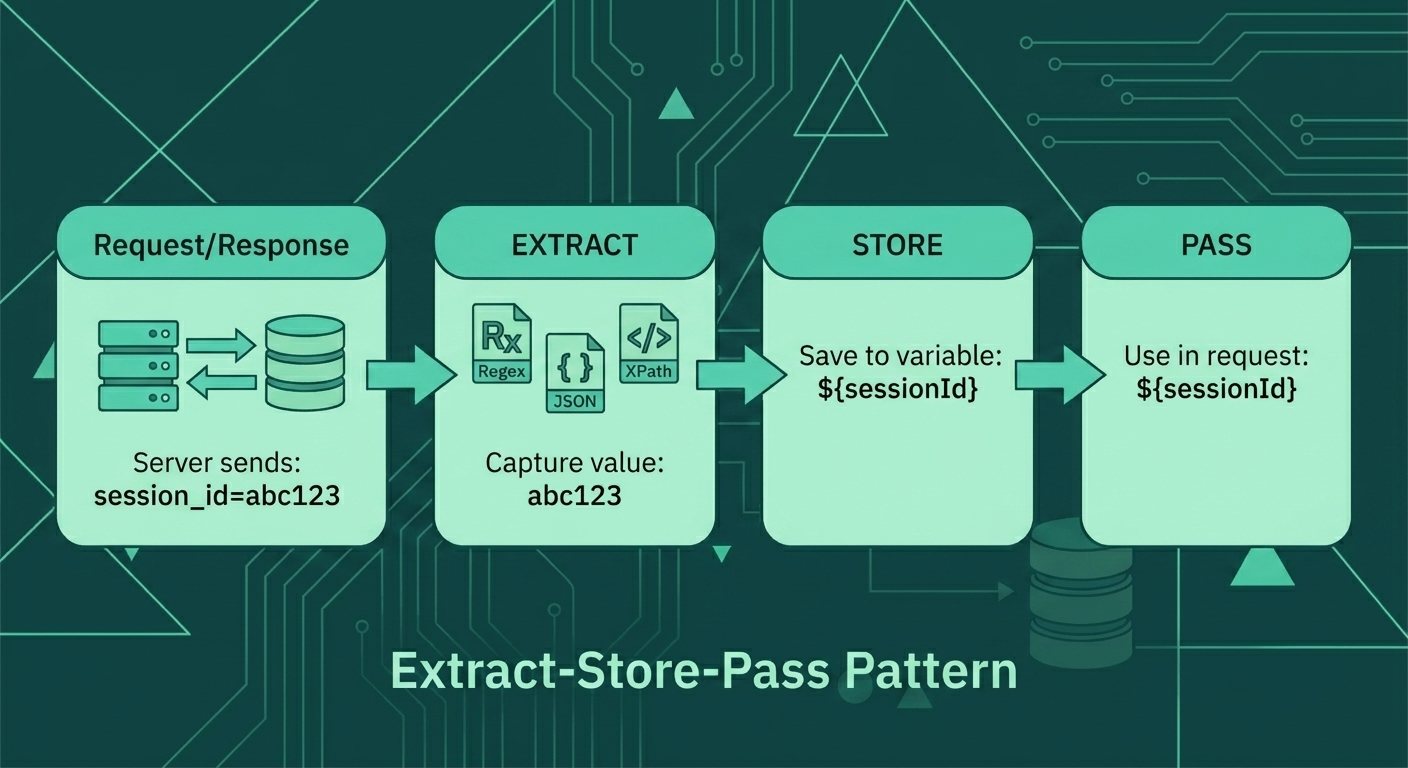
The flow works like this: Extract dynamic values from the server response using Regex, JSON, or XPath extractors, store them in JMeter variables, then pass those variables to subsequent requests.
Regular Expression Extractor
The most versatile extractor. Works with any text response.
Basic Syntax
Response: "Your order ID is ORD-12345. Thank you!"

Regex: order ID is (ORD-\d+)
       └─────────┬─────────┘
                 │
         Capturing group $1$
JMeter Configuration
<RegexExtractor guiclass="RegexExtractorGui" testclass="RegexExtractor"
                testname="Extract Order ID">
  <stringProp name="RegexExtractor.useHeaders">false</stringProp>
  <stringProp name="RegexExtractor.refname">orderId</stringProp>
  <stringProp name="RegexExtractor.regex">order ID is (ORD-\d+)</stringProp>
  <stringProp name="RegexExtractor.template">$1___CODEBLOCK_2___lt;/stringProp>
  <stringProp name="RegexExtractor.default">NOT_FOUND</stringProp>
  <stringProp name="RegexExtractor.match_number">1</stringProp>
</RegexExtractor>| Field | Value | Purpose |
|---|---|---|
| Reference Name | orderId | Variable name to store result |
| Regular Expression | order ID is (ORD-\d+) | Pattern with capturing group |
| Template | $1$ | Which group to extract (1st) |
| Match No. | 1 | Which match (1 = first, 0 = random) |
| Default | NOT_FOUND | Value if no match |
Using the Extracted Value
<HTTPSamplerProxy testname="Get Order Details">
  <stringProp name="HTTPSampler.path">/api/orders/${orderId}</stringProp>
</HTTPSamplerProxy>
JSON Extractor
For JSON API responses, JSON Extractor is cleaner and more maintainable.
JSON Response Example
{
  "cart": {
    "id": "cart_abc123",
    "items": [
      {"productId": "prod_001", "quantity": 2},
      {"productId": "prod_002", "quantity": 1}
    ],
    "csrfToken": "csrf_xyz789"
  }
}
JSON Path Expressions
$.cart.id           → "cart_abc123"
$.cart.csrfToken    → "csrf_xyz789"
$.cart.items[0].productId → "prod_001"
$.cart.items[*].productId → ["prod_001", "prod_002"]
JMeter Configuration
<JSONPostProcessor guiclass="JSONPostProcessorGui" testclass="JSONPostProcessor"
                   testname="Extract Cart Data">
  <stringProp name="JSONPostProcessor.referenceNames">cartId;csrfToken</stringProp>
  <stringProp name="JSONPostProcessor.jsonPathExprs">$.cart.id;$.cart.csrfToken</stringProp>
  <stringProp name="JSONPostProcessor.match_numbers">1;1</stringProp>
  <stringProp name="JSONPostProcessor.defaultValues">NOT_FOUND;NOT_FOUND</stringProp>
</JSONPostProcessor>
This extracts multiple values at once:
${cartId}= "cart_abc123"${csrfToken}= "csrf_xyz789"
XPath Extractor
For HTML or XML responses where you need to extract from the DOM structure.
HTML Response Example
<form action="/checkout" method="POST">
  <input type="hidden" name="_csrf" value="csrf_xyz789" />
  <input type="hidden" name="cartId" value="cart_abc123" />
  <button type="submit">Complete Purchase</button>
</form>
XPath Expressions
//input[@name='_csrf']/@value    → "csrf_xyz789"
//input[@name='cartId']/@value   → "cart_abc123"
JMeter Configuration
<XPathExtractor guiclass="XPathExtractorGui" testclass="XPathExtractor"
                testname="Extract CSRF from Form">
  <stringProp name="XPathExtractor.refname">csrfToken</stringProp>
  <stringProp name="XPathExtractor.xpathQuery">//input[@name='_csrf']/@value</stringProp>
  <stringProp name="XPathExtractor.default">NOT_FOUND</stringProp>
  <stringProp name="XPathExtractor.matchNumber">1</stringProp>
</XPathExtractor>
E-commerce Correlation Example
Let's build a complete cart flow with proper correlation.
Step 1: Login and Extract Session
<HTTPSamplerProxy testname="Login">
  <stringProp name="HTTPSampler.path">/api/auth/login</stringProp>
  <stringProp name="HTTPSampler.method">POST</stringProp>
  <boolProp name="HTTPSampler.postBodyRaw">true</boolProp>
  <stringProp name="Argument.value">{"email":"${email}","password":"${password}"}</stringProp>
</HTTPSamplerProxy>
Response:
{
  "user": {"id": "user_123", "name": "John"},
  "token": "eyJhbGciOiJIUzI1NiIsInR5cCI6IkpXVCJ9...",
  "csrfToken": "csrf_abc123"
}
Extractor:
<JSONPostProcessor testname="Extract Auth Tokens">
  <stringProp name="JSONPostProcessor.referenceNames">authToken;csrfToken;userId</stringProp>
  <stringProp name="JSONPostProcessor.jsonPathExprs">$.token;$.csrfToken;$.user.id</stringProp>
  <stringProp name="JSONPostProcessor.defaultValues">NOT_FOUND;NOT_FOUND;NOT_FOUND</stringProp>
</JSONPostProcessor>
Step 2: Add to Cart with Tokens
<HTTPSamplerProxy testname="Add to Cart">
  <stringProp name="HTTPSampler.path">/api/cart/items</stringProp>
  <stringProp name="HTTPSampler.method">POST</stringProp>
  <boolProp name="HTTPSampler.postBodyRaw">true</boolProp>
  <stringProp name="Argument.value">{"productId":"${productId}","quantity":1}</stringProp>
</HTTPSamplerProxy>

<HeaderManager testname="Auth Headers">
  <collectionProp name="HeaderManager.headers">
    <elementProp name="Authorization" elementType="Header">
      <stringProp name="Header.name">Authorization</stringProp>
      <stringProp name="Header.value">Bearer ${authToken}</stringProp>
    </elementProp>
    <elementProp name="X-CSRF-Token" elementType="Header">
      <stringProp name="Header.name">X-CSRF-Token</stringProp>
      <stringProp name="Header.value">${csrfToken}</stringProp>
    </elementProp>
  </collectionProp>
</HeaderManager>
Response:
{
  "cartId": "cart_789",
  "items": [{"productId": "prod_001", "quantity": 1}],
  "total": 29.99
}
Extractor:
<JSONPostProcessor testname="Extract Cart ID">
  <stringProp name="JSONPostProcessor.referenceNames">cartId</stringProp>
  <stringProp name="JSONPostProcessor.jsonPathExprs">$.cartId</stringProp>
  <stringProp name="JSONPostProcessor.defaultValues">NOT_FOUND</stringProp>
</JSONPostProcessor>
Step 3: Checkout with Cart ID
<HTTPSamplerProxy testname="Checkout">
  <stringProp name="HTTPSampler.path">/api/checkout</stringProp>
  <stringProp name="HTTPSampler.method">POST</stringProp>
  <boolProp name="HTTPSampler.postBodyRaw">true</boolProp>
  <stringProp name="Argument.value">{
    "cartId": "${cartId}",
    "paymentMethod": "credit_card",
    "shippingAddress": "${addressId}"
  }</stringProp>
</HTTPSamplerProxy>
Debugging Correlation
Use Debug Sampler
Add a Debug Sampler after your extractor to see all variables:
<DebugSampler guiclass="TestBeanGUI" testclass="DebugSampler"
              testname="Debug Sampler">
  <boolProp name="displayJMeterProperties">false</boolProp>
  <boolProp name="displayJMeterVariables">true</boolProp>
  <boolProp name="displaySystemProperties">false</boolProp>
</DebugSampler>
Output shows:
authToken=eyJhbGciOiJIUzI1NiIsInR5cCI6IkpXVCJ9...
cartId=cart_789
csrfToken=csrf_abc123
userId=user_123
Check with View Results Tree
In the View Results Tree listener, look at:
- Request tab - verify variables were substituted
- Response tab - find the values you need to extract
- Debug Sampler response - see all stored variables
Advanced: JSR223 PostProcessor
For complex extraction logic, use Groovy scripting:
import groovy.json.JsonSlurper

// Parse the response
def response = prev.getResponseDataAsString()
def json = new JsonSlurper().parseText(response)

// Extract and transform
def cartId = json.cart?.id ?: "NOT_FOUND"
def itemCount = json.cart?.items?.size() ?: 0

// Store as JMeter variables
vars.put("cartId", cartId)
vars.put("itemCount", itemCount.toString())

// Conditional extraction
if (json.cart?.discount) {
    vars.put("discountCode", json.cart.discount.code)
    vars.put("discountAmount", json.cart.discount.amount.toString())
}

log.info("Extracted cartId: ${cartId}, items: ${itemCount}")
<JSR223PostProcessor guiclass="TestBeanGUI" testclass="JSR223PostProcessor"
testname="Complex Extraction">
<stringProp name="scriptLanguage">groovy</stringProp>
<stringProp name="script">/* Groovy code above */</stringProp>
</JSR223PostProcessor>Common Correlation Patterns
Pattern: Refresh CSRF Token
Some apps regenerate CSRF tokens on every response:
<!-- Add after EVERY request that returns a new token -->
<RegexExtractor testname="Refresh CSRF">
  <stringProp name="RegexExtractor.refname">csrfToken</stringProp>
  <stringProp name="RegexExtractor.regex">name="_csrf" value="([^"]+)"</stringProp>
  <stringProp name="RegexExtractor.template">$1___CODEBLOCK_21___lt;/stringProp>
  <stringProp name="RegexExtractor.default">${csrfToken}</stringProp>
</RegexExtractor>
The default ${csrfToken} keeps the old value if no new token is found.
Pattern: Extract from Set-Cookie Header
<RegexExtractor testname="Extract Session Cookie">
  <stringProp name="RegexExtractor.useHeaders">true</stringProp>
  <stringProp name="RegexExtractor.refname">sessionId</stringProp>
  <stringProp name="RegexExtractor.regex">SESSION=([^;]+)</stringProp>
  <stringProp name="RegexExtractor.template">$1___CODEBLOCK_22___lt;/stringProp>
</RegexExtractor>
Note: useHeaders=true searches response headers instead of body.
Key Takeaways
- Correlation = Extract-Store-Pass: Capture dynamic values and use them in subsequent requests.
- Choose the right extractor: JSON Extractor for APIs, Regex for text, XPath for HTML/XML.
- Always set defaults: Use "NOT_FOUND" to make debugging easier when extraction fails.
- Debug first: Use Debug Sampler and View Results Tree to verify extraction before running full tests.
Next Lesson
You can now handle dynamic values. But what about testing with different users, products, and scenarios? Next, we'll cover Parameterization - using CSV files and variables to create data-driven tests.